Server setup
trm-server is the server-side component of TRM.
It acts as the secure bridge between the SAP application server and the TRM client.
It exposes the APIs that allow TRM to import and export transports. Consequently, it must be installed only on source and target systems; it is not required on any other system in the landscape.
First Installation
The first installation must be performed using the standalone installer.
The standalone installer is a self-contained ABAP report that allows the installation of trm-server and trm-rest.
The installer imports trm-server transports (and trm-rest transports, if necessary) into your system and automatically moves their objects into the temporary package $TRM, which it also creates.
The installer does not import the /ATRM/ namespace because trm-server and trm-rest are intended to be used as-is. If you need to modify their objects, consider installing them via abapGit instead.
After the initial installation, we recommend installing subsequent updates through TRM.
- Download the report source code from here
- Open transaction
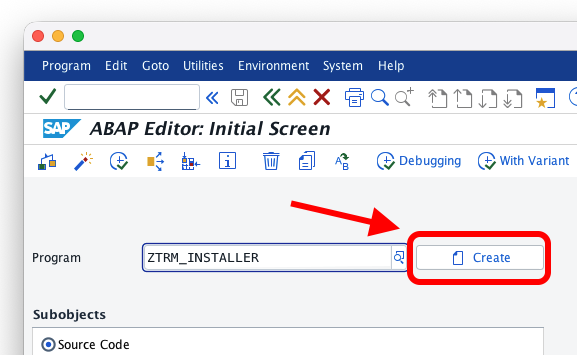
SE38and create a new report calledZTRM_INSTALLER
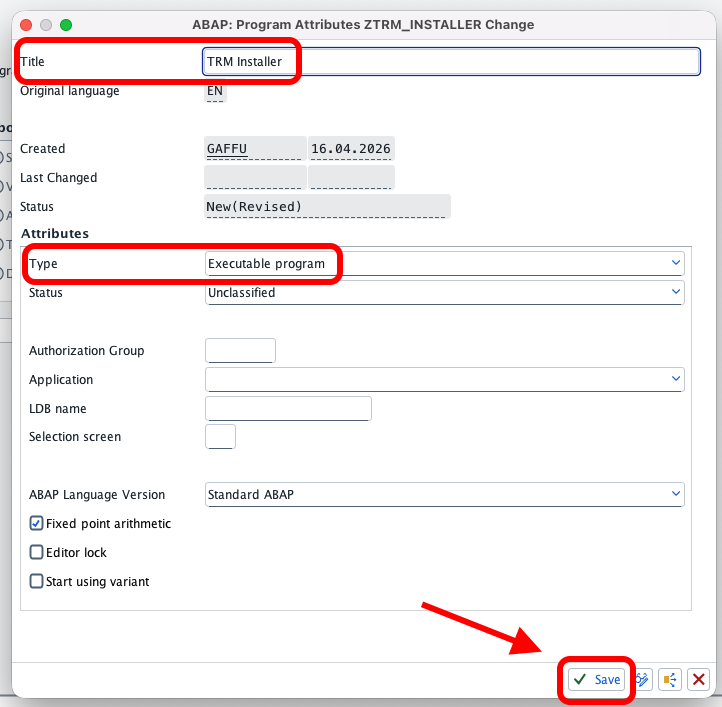
- Give it a title and set the type to "Executable program"
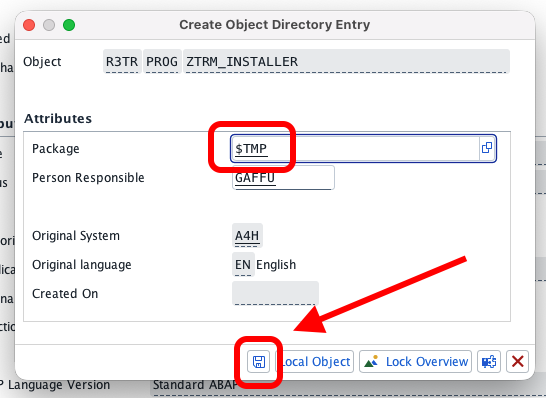
- Save as a local object (or in temporary package
$TMP)
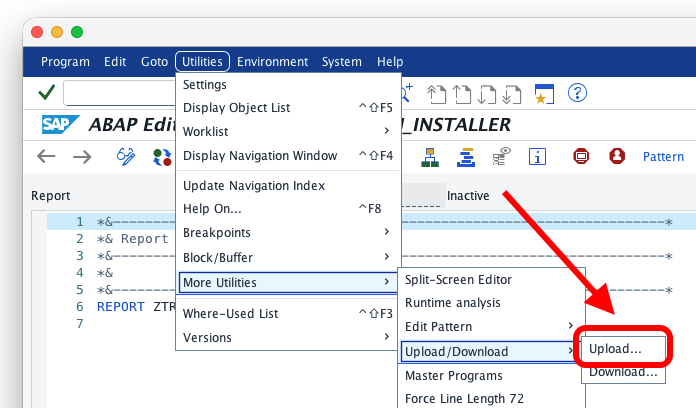
- Paste or upload the report's source code, then activate it
Release file install (From file)
Download the releases
- Go to https://trmregistry.com and search for trm-server
- On the release page, select Download
- Download trm-rest too, if needed
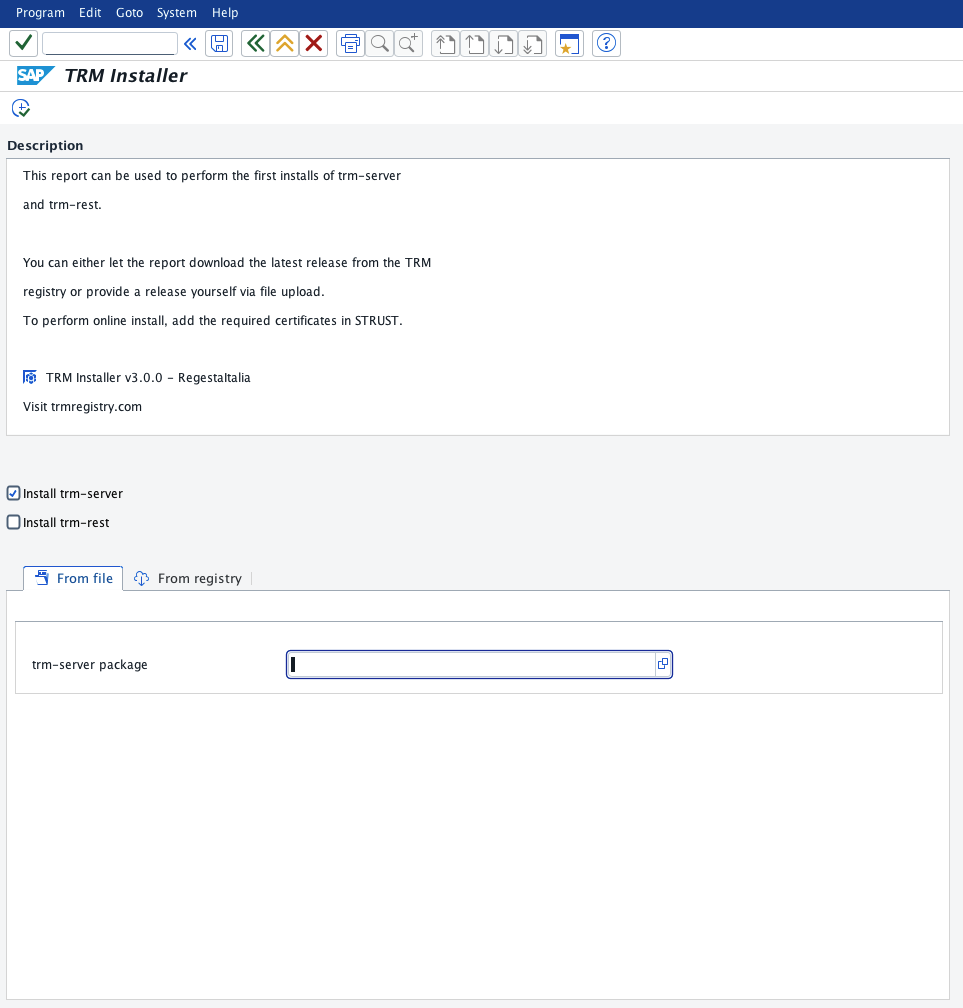
- Open SE38 and run
ZTRM_INSTALLER - Select the file(s) downloaded
- Execute the report and wait for the installation to complete (approximately five minutes)
Online install (From registry)
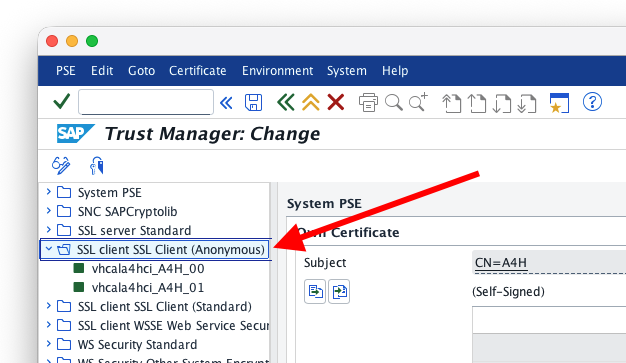
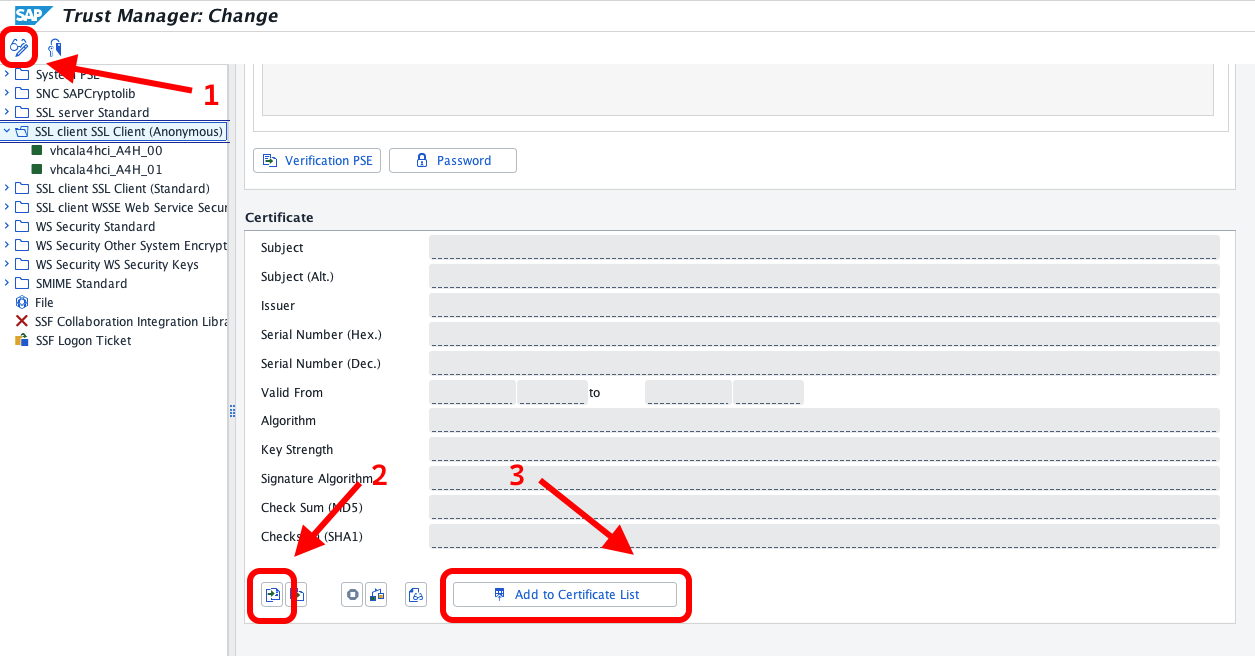
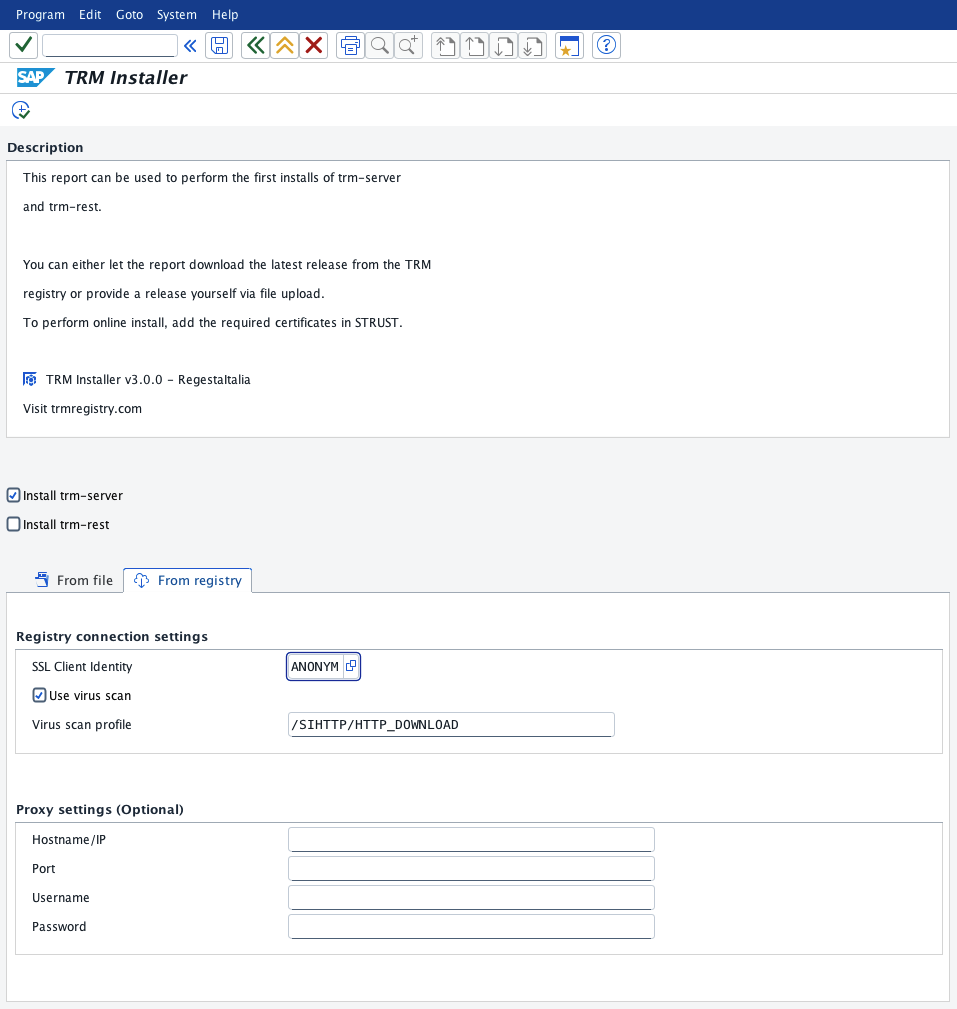
### Online install The online installation is only possible if your system is allowed to connect to the external server [https://trmregistry.com](https://trmregistry.com). #### Download the certificate files *This paragraph is courtesy of abapGit.org* ##### Option A - Chrome 1. Use Google Chrome to go to [https://trmregistry.com](https://trmregistry.com) 2. Select the lock icon near the address bar, then select "Connection is secure" 3. On the Security tab, select "Certificate is valid" 4. Go to the "Details" tab and select "Export..." to download the certificate 5. In the "Certification hierarchy" box, select the parent node of the GitHub certificate and export it as well. Repeat the same with the root node.

Authorize Users
Grant each SAP user who needs to use TRM authorization object ZTRM_AUTH with activity
ACTVT = 16 (Execute), typically through an assigned role.
For security reasons, TRM does not allow a user to execute its functions unless the user has this authorization.
Verify RFC Authorization
To verify that a user has access to RFC functions:
- Log into the system as the user you want to test
- Execute function module
/ATRM/PING
If the user is authorized, no errors should occur. If not authorized, access will be denied.
Install with abapGit
Because this package uses the /ATRM/ namespace, installation through abapGit requires a system with this namespace installed.
Demo systems
If you are running a demo system, you can use the following keys:
Development key: 18531191373370851361
Repair key: 00211665563784583720
Other systems
For abapGit to work, you need to generate a valid developer key using the Development Namespace Application.